Mycroft Mark 1 Hardware
In a nutshell
The Mark 1 was the original Mycroft smart speaker, recognizable by its little face: a grid of LEDs that forms a scrolling "mouth" and two colored "eyes". This developer page explains how OVOS lets skills control that faceplate: showing text or images on the mouth, and changing the eyes' color, blinking, and animations. It covers both a simple high-level interface and a lower-level library for fine-grained, pixel-by-pixel effects. See the Glossary for unfamiliar terms.
The Mycroft Mark 1 was the first official hardware for Mycroft AI. It features a distinctive faceplate with a 32x8 LED "mouth" and two RGB LED "eyes". OpenVoiceOS provides full support for the Mark 1 hardware, including both a high-level EnclosureAPI for common tasks and a low-level ovos-mark1-utils library for fine-grained control.
Enclosure API
The EnclosureAPI is an abstraction over the "body" of the device. It provides a standard way for skills to interact with hardware features like displays and LEDs without needing to know the low-level details of the hardware transport.
In a standard OVOSSkill, the EnclosureAPI is available as self.enclosure.
Drawing to the Mouth Display
The mouth display is a grid of 32x8 pixels. You can send text, which will scroll if it's too long, or draw custom images.
Displaying Text:
Displaying Images (Code): Images can be encoded as a string where each character represents 4 pixels.
Displaying Images (PNG): You can also display 32x8 PNG images.
Mark 1 Utilities (ovos-mark1-utils)
For more advanced control, such as pixel-by-pixel eye manipulation or complex faceplate
animations, use the ovos-mark1-utils
library (import name ovos_mark1, pip install ovos-mark1-utils). It interacts with the
faceplate over the messagebus (see the
PHAL Mark 1 message spec) and offers
three layers:
Mark1EnclosureAPI: the high-level enclosure API (mouth text, mouth animations, eye color, system reset). It subclasses the standardEnclosureAPIand is whatself.enclosureresolves to on Mark 1 hardware.Eyes: fine-grained eye control (color, brightness, blink, spins).FaceplateGrid/BlackScreen: pixel-level drawing on the 32×8 mouth display, plus ready-made icons and animations.
from ovos_mark1 import Mark1EnclosureAPI
from ovos_bus_client.util import get_mycroft_bus

bus = get_mycroft_bus()
enclosure = Mark1EnclosureAPI(bus)
enclosure.mouth_text("hello")
enclosure.eyes_color(255, 0, 0)   # red eyes
Animating the Eyes
from ovos_mark1.eyes import Eyes
from ovos_bus_client.util import get_mycroft_bus

bus = get_mycroft_bus()
eyes = Eyes(bus)
eyes.change_color("blue")  # named colour
eyes.on(); eyes.off()      # raw on / off
blink() and the hue_spin / saturation_spin / luminance_spin animations each run an
unconditional while True: loop with no return — call them in their own thread (or as a
skill's background task), never inline in a sequential script, since they never hand
control back. The Eyes API also exposes set_hue and set_brightness(level) (level
1-30, bigger is brighter).
Faceplate Icons
You can define icons using a simple string grid:
Each icon is 32 columns wide by 8 rows tall. X is a lit pixel, space is unlit:
from ovos_mark1.faceplate import BlackScreen


class MusicIcon(BlackScreen):
    str_grid = """
XXXXXXXXXXXXXXXXXXXXXXXXXXXXXXXX
XXXXXXXXXXXXXX     XXXXXXXXXXXXX
XXXXXXXXXXXXXX     XXXXXXXXXXXXX
XXXXXXXXXXXXXX XXX XXXXXXXXXXXXX
XXXXXXXXXXXXXX XXX XXXXXXXXXXXXX
XXXXXXXXXXXXX  XX  XXXXXXXXXXXXX
XXXXXXXXXXXX   X   XXXXXXXXXXXXX
XXXXXXXXXXXXX XXX XXXXXXXXXXXXXX
"""


icon = MusicIcon()  # connects to the bus via get_mycroft_bus() if none is passed
icon.display()      # push the grid to the Mark 1 faceplate over the bus
Faceplate Animations
The library includes base classes for creating dynamic animations, such as cellular automata or particle systems.
from ovos_mark1.faceplate.cellular_automaton import Rule110
from ovos_bus_client.util import get_mycroft_bus
from time import sleep

bus = get_mycroft_bus()
a = Rule110(bus=bus)

for grid in a:
    grid.display(invert=False)
    sleep(0.5)
Source code: OpenVoiceOS/ovos-mark1-utils. See also the PHAL Mark 1 message spec.
Bus topics follow the OVOS spec namespace
The Mark 1 PHAL plugin emits its faceplate/enclosure bus messages under the standard OVOS spec message namespace rather than legacy topic names. See the PHAL Mark 1 message spec for the current topic names.
Faceplate page in the control panel
The OVOS Control Panel has a Mark 1 faceplate page that draws the same
32x8 mouth grid and two twelve-LED eye rings as the real hardware — every LED is drawn
whether lit or not, matching the plastic faceplate rather than a simplified sketch. It works
as a simulator in the browser with no plugin installed; with ovos-PHAL-plugin-mk1 running
on the device, the page can also mirror the live face and send designs to it.
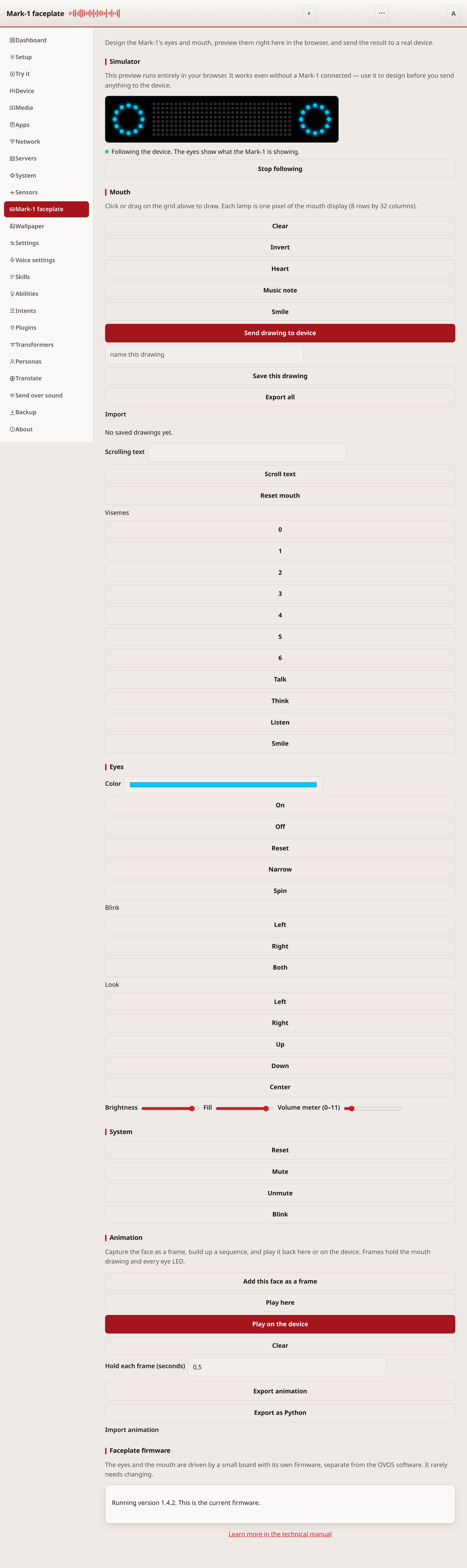
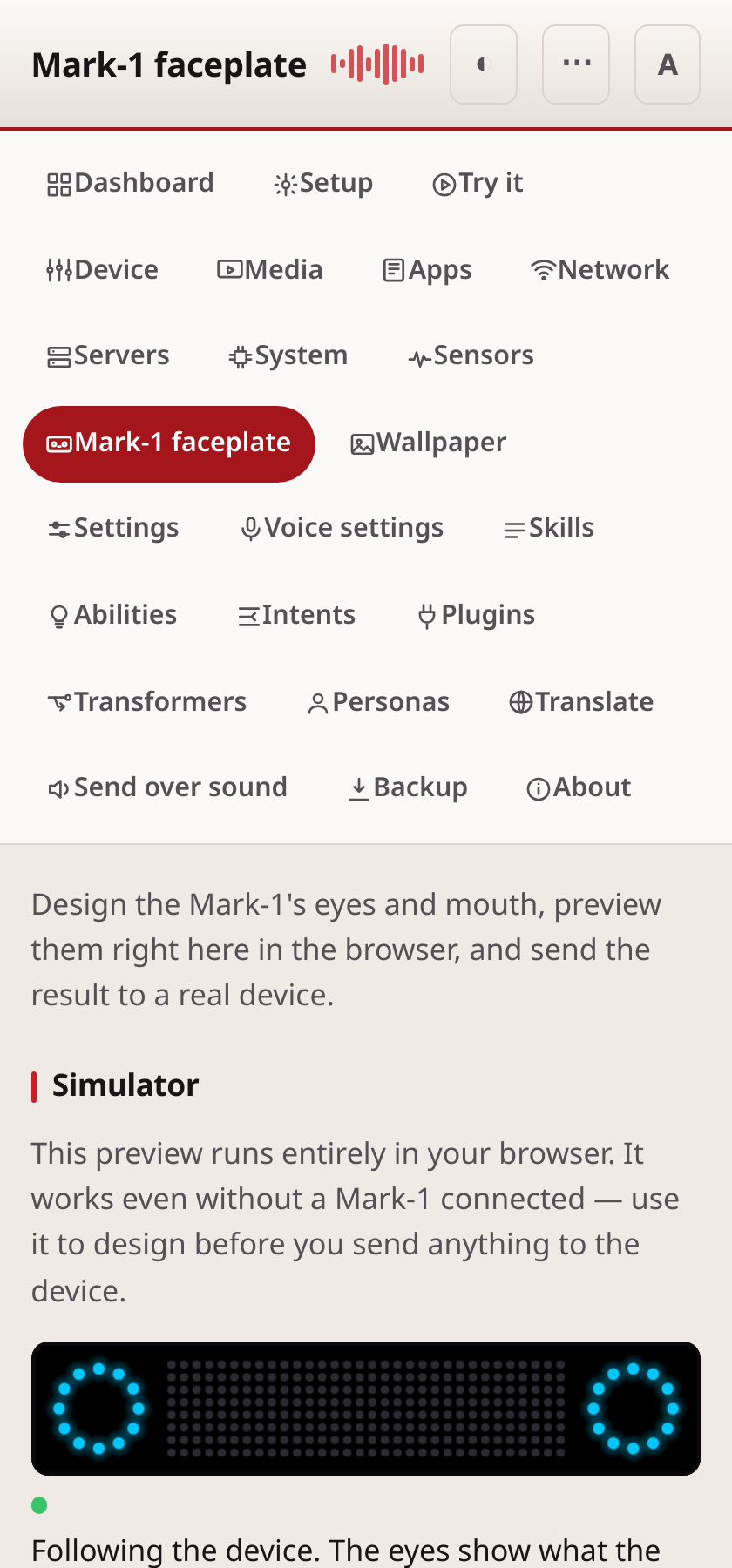
The device shown in these screenshots is a stand-in: the page could not confirm a connected Mark 1 when the screenshots were taken, so they show the browser simulator, not a live faceplate.
Read next: Mark 2 Hardware Related: i2c Sound & Audio Setup · Hardware Integrators · PHAL